Onboarding a Datacenter
A datacenter is where your event broker services run. Each one is a namespace in a Kubernetes cluster with a datacenter agent in it. The agent receives requests from Sovereign Home Cloud, then creates, upgrades, and deletes event broker services in that namespace.
A production installation starts with no datacenter. You create each one in the Ops User Interface (UI), which generates the agent's Helm values, then install the agent with them. Datacenters belong to an organization, so create the organization first; see Administering with the Ops UI.
Before you create the first event broker service, consider the following three decisions for each datacenter:
| Decision | Question | Section |
|---|---|---|
| Exposure | How do applications reach an event broker service? | Event Broker Service Exposure |
| DNS | Which name do applications use? | Event Broker Service DNS and Hostnames |
| Certificates | Which certificate does an event broker service present, and who trusts it? | Broker Certificates |
Start from one question: where do the applications that use the event broker services run? If they run in the same cluster, use ClusterIP. If they run outside it, use NodePort or LoadBalancer.
Create a Datacenter
1. Prepare the namespace
Each datacenter's agent and its event broker services run in a namespace of their own. Create the namespace, with a pull secret for the registry your images come from, and the CA Secret from The CA Certificate, created again here from the same files:
kubectl create namespace <namespace>
kubectl create secret docker-registry <pull secret name> -n <namespace> \
  --docker-server=<registry> --docker-username=<username> --docker-password=<password>
kubectl create secret generic broker-issuing-ca -n <namespace> \
  --from-file=ca.crt=ca.crt \
  --from-file=ca.key=ca.enc.key \
  --from-file=passphrase=<(printf '%s' "$PASSPHRASE")
2. Create the private region
-
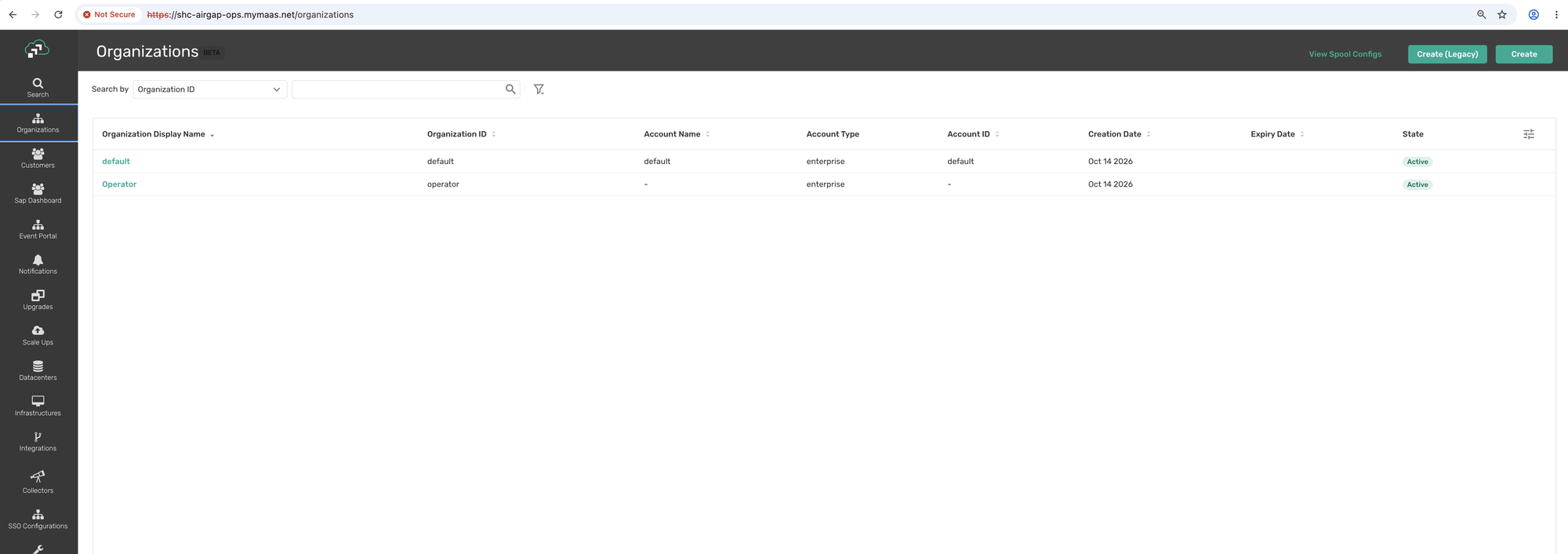
Sign in to the Ops UI as the Ops UI administrator, open Organizations, and select the organization the datacenter is for.
-
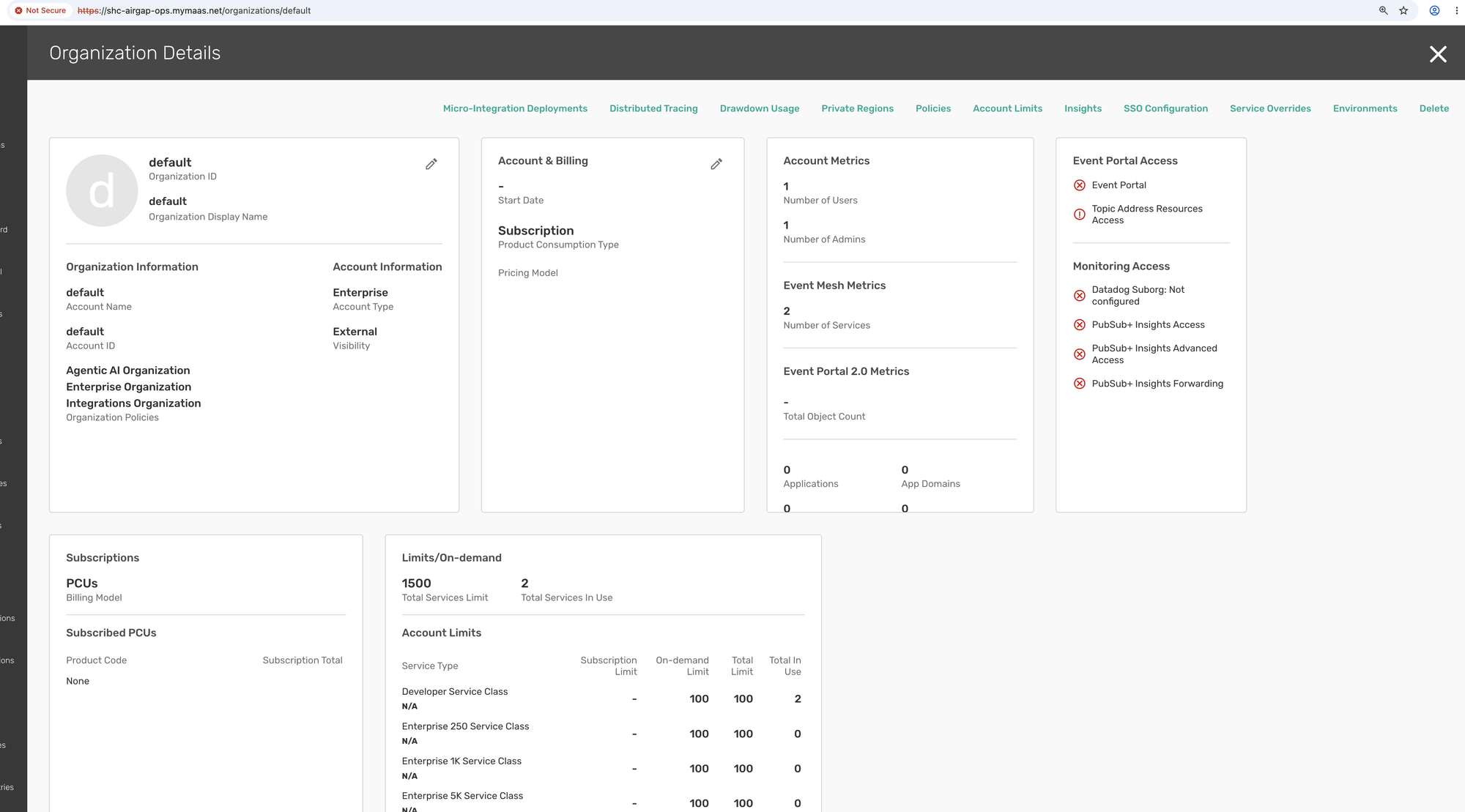
On the Organization Details page, open Private Regions.
-
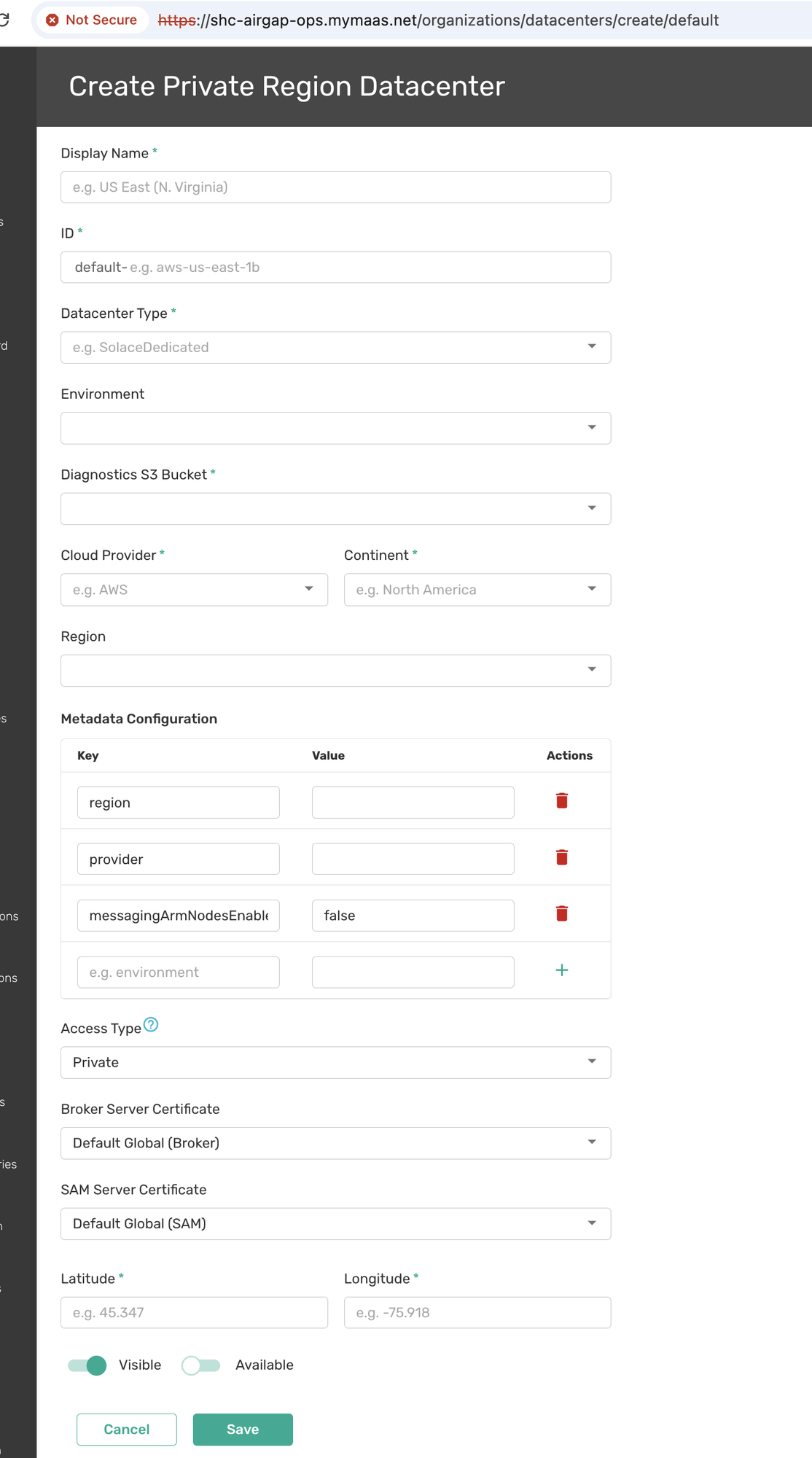
Click Create. The Create Private Region Datacenter form opens.
-
Fill in the form:
Field Value Display Name The name users see when they create an event broker service ID A unique ID. The Ops UI prefixes it with the organization's ID, for example default-team-dc. It names the agent and cannot change later.Datacenter Type CustomerOnPremEnvironment Leave the environment as it is Diagnostics S3 Bucket Required by the form. Pick the first entry offered, or Custom… with any bucket name and region. Cloud Provider, Continent, Region Where the cluster runs, as shown to users Metadata Configuration Fill in the regionandproviderkeys. KeepmessagingArmNodesEnabledatfalse.Access Type PrivateBroker Server Certificate, SAM Server Certificate Keep the defaults. The datacenter's own CA is set in step 3. Latitude, Longitude The location for the datacenter as shown on the Cloud Console's map Visible, Available Enable both -
Click Save.
3. Configure the datacenter
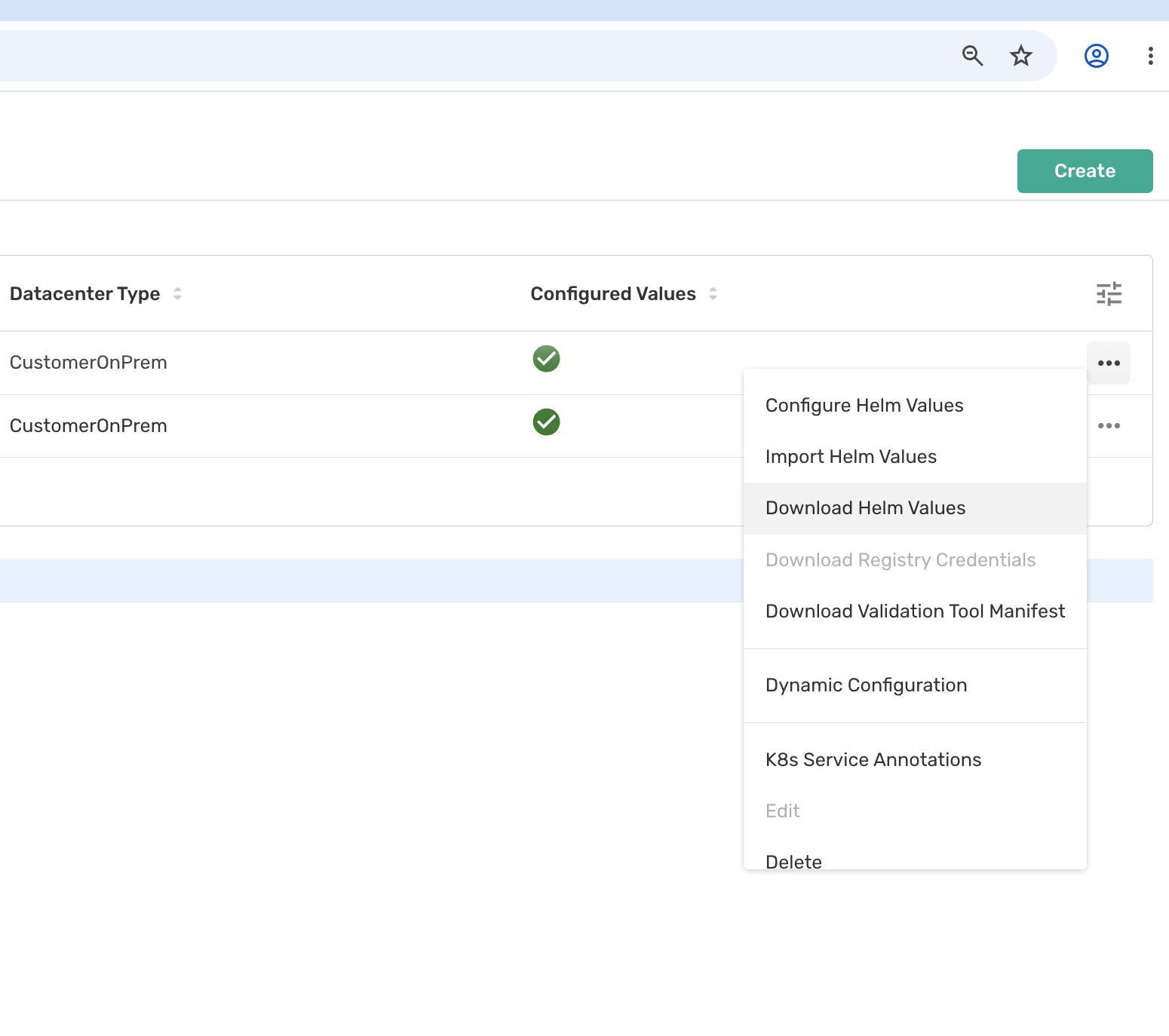
In the organization's Private Regions, open the new datacenter's ⋯ menu and choose Configure Helm Values. The Configure Private Region Datacenter page has a section for each part of the agent's settings.
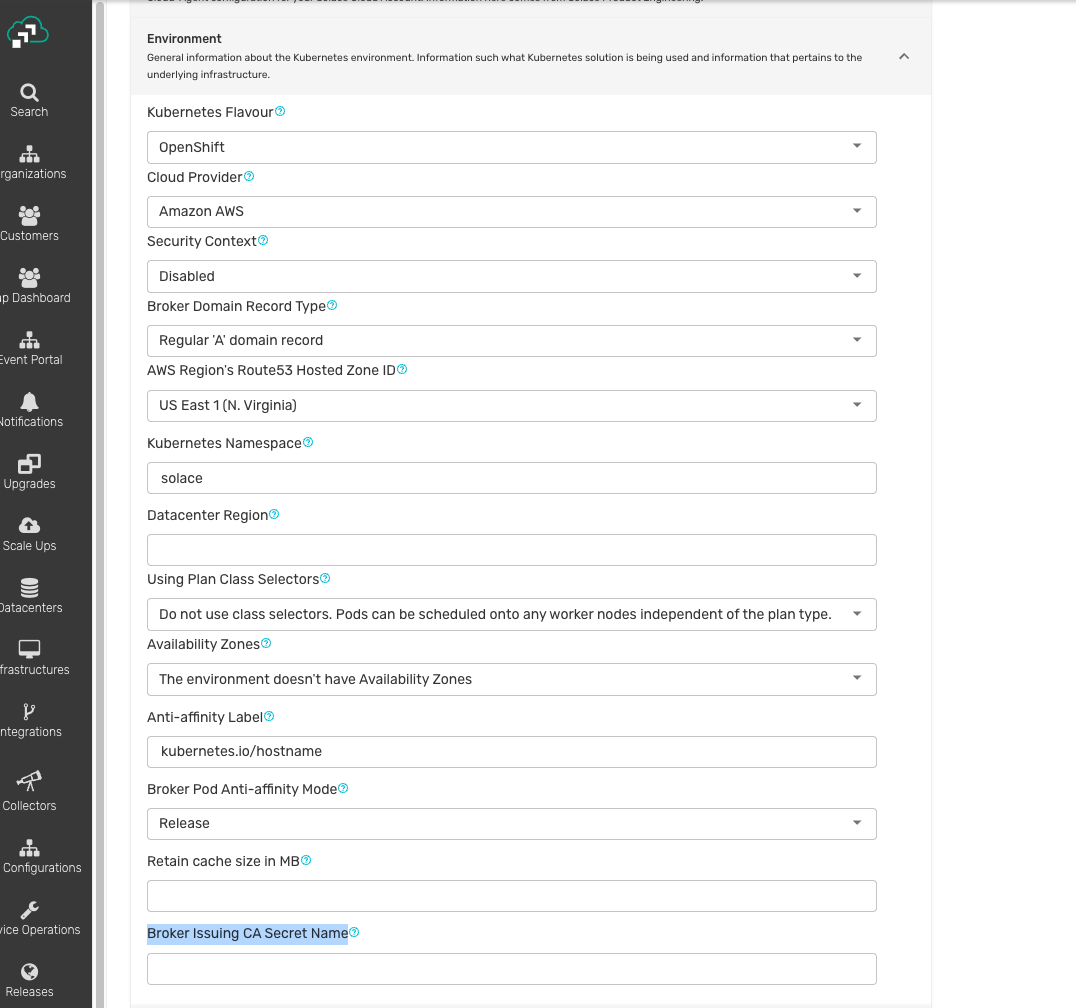
Environment
| Field | Value |
|---|---|
| Kubernetes Flavour | Your platform: Amazon EKS, Azure AKS, Google GKE or OpenShift. This fills in the platform's defaults. |
| Cloud Provider | Where the cluster runs |
| Security Context | Keep the value Kubernetes Flavour sets: Disabled on OpenShift, which assigns the user IDs itself, and Enabled elsewhere |
| Kubernetes Namespace | The namespace from step 1 |
| Datacenter Region | The same region as in step 2 |
| Broker Issuing CA Secret Name | broker-issuing-ca, the CA Secret from step 1. The agent signs each broker's certificate with it; see Broker Certificates. |
Keep the other Environment fields at their defaults unless your cluster requires otherwise.
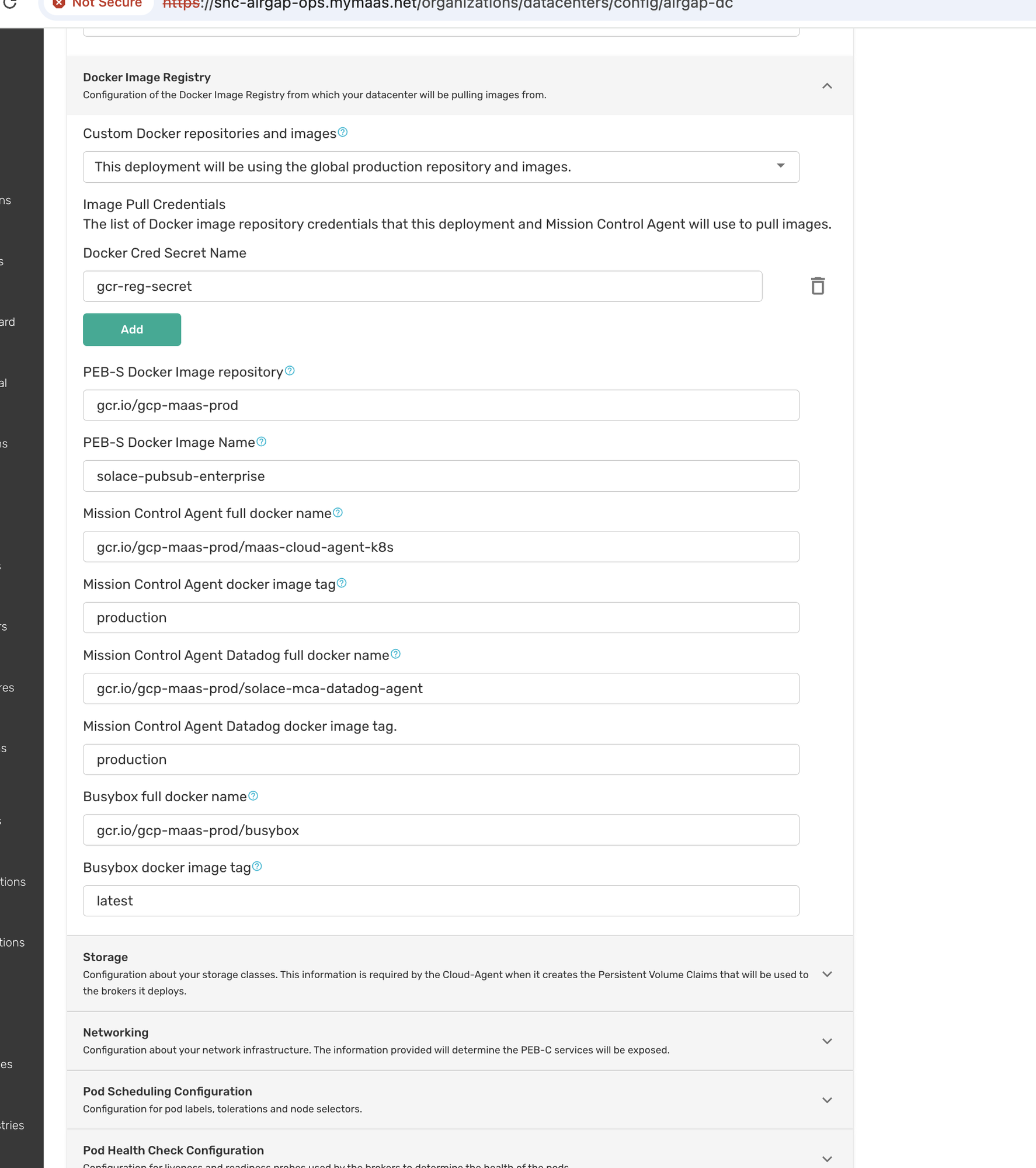
Docker Image Registry
The defaults point at Solace Cloud's own registry, which a Sovereign Home Cloud cannot pull from. Set Custom Docker repositories and images to This deployment will be using custom Docker repository and images, then set:
| Field | Value |
|---|---|
| Docker Cred Secret Name | The pull secret from step 1 |
| PEB-S Docker Image repository | Your registry, for example registry.solace.com/solace/home-cloud-control-plane |
| PEB-S Docker Image Name | solace-pubsub-enterprise |
| Mission Control Agent full docker name | <registry>/maas-cloud-agent-k8s |
| Mission Control Agent docker image tag | Your release's agent version: solace-cloud-ca.image.cloudAgent.tag in the home-cloud-control-plane chart's values.yaml |
| Busybox full docker name, tag | <registry>/busybox, latest |
Storage
| Field | Value |
|---|---|
| AZ specific StorageClass | All zones use the same Storage Class, unless each availability zone has its own |
| Storage Class Name | The StorageClass for broker volumes, for example gp2 on Amazon EKS |
Networking
| Field | Value |
|---|---|
| Service Type | Load Balancer, Node Port or ClusterIP; see Broker Exposure |
| External NodePort hostname | For Node Port only: the address applications use to connect to event broker services |
Click Save. The datacenter's Configured Values column shows a check mark.
4. Download the Helm values
From the datacenter's ⋯ menu, choose Download Helm Values. The file holds the credentials the agent uses with Sovereign Home Cloud, so treat it as a secret.
5. Edit the downloaded values
The Ops UI does not set this yet. Add it to the downloaded file's monitoring section, which is already there:
monitoring:
  brokerDatadog:
    enabled: false
It stops event broker services sending anything to Datadog.
If the control plane uses the embedded broker, the downloaded vmr.host resolves only in the control plane's own namespace. Replace it with the broker's full address, and label the datacenter's namespace so the broker admits it:
vmr:
  host: tcp://home-cloud-control-plane-broker.home-cloud-control-plane.svc:55555
kubectl label namespace <namespace> solace.com/home-cloud-mca=true
Leave vmr.username and vmr.password as downloaded: they are the datacenter's own credentials.
6. Install the agent
The agent's chart, solace-cloud-ca, ships inside the home-cloud-control-plane chart, under charts/:
helm pull oci://registry.solace.com/solace/home-cloud-control-plane/charts/home-cloud-control-plane \
  --version <chart version> --untar
helm install <datacenter id> ./home-cloud-control-plane/charts/solace-cloud-ca -n <namespace> \
  -f <downloaded values file>
Use the chart version of your Sovereign Home Cloud installation, so the agent matches it.
7. Verify
- The agent is running:
kubectl get deploy -n <namespace>. - In the Ops UI, the datacenter shows as connected.
- In the Cloud Console, an organization member creates an event broker service and chooses the datacenter. Its pods appear in the namespace.
Event Broker Service Exposure: NodePort, ClusterIP and LoadBalancer
The examples in this and the following sections are written for the Quick Start's values file, under solace-cloud-ca. In a datacenter's downloaded values file, the same keys sit at the top level: k8s.serviceType, not solace-cloud-ca.k8s.serviceType.
| Type | Reached from | Advertised address | Choose it when |
|---|---|---|---|
| NodePort (default) | Outside the cluster, on a high port of a node | serviceHostname |
You need access from outside and have no load balancer: on-premises, bare metal, edge |
| ClusterIP | Inside the cluster only | <service>.<namespace>.svc.cluster.local |
Applications run in the same cluster. The simplest option, and the natural one for an air-gapped installation |
| LoadBalancer | Outside the cluster, on standard ports | The load balancer's hostname or IP | You have a load balancer provider (a cloud load balancer, or MetalLB) and want a stable address per broker |
NodePort
solace-cloud-ca:
  k8s:
    serviceType: NodePort
    serviceHostname: brokers.example.com    # or a node IP
serviceHostnamemust be reachable by your applications and resolvable from inside the cluster. The agent checks every new event broker service through that address, so a name that resolves only on your workstation makes event broker service creation fail.- Each event broker service gets its own ports in the NodePort range (30000–32767 by default). The event broker service's Connect tab on the Service Details page in the Cloud Console shows them.
- Every node that should accept event broker service traffic must carry the label
node-role.kubernetes.io/worker=true. The agent reads node addresses, so with NodePort it is granted read access to the cluster's nodes.
ClusterIP
solace-cloud-ca:
  k8s:
    serviceType: ClusterIP
Applications in the cluster connect to the event broker service's in-cluster name. No ports are opened on the nodes and no DNS records are needed. Pair it with certificates from your own CA, so that the certificate carries that in-cluster name.
LoadBalancer
solace-cloud-ca:
  k8s:
    serviceType: LoadBalancer
Each event broker service gets its own load balancer address from your provider. The address only exists after the event broker service is created, so pair it with certificates from your own CA; the agent then adds the address to the event broker service's certificate.
Broker DNS and Hostnames
Sovereign Home Cloud does not create DNS records. An event broker service answers at the address the agent advertises: serviceHostname, the in-cluster name, or the load balancer address. If you want other names, publish them yourself:
- By hand: one record pointing at the node address or load balancer, for a few event broker services.
- With external-dns: your external-dns controller publishes a record per broker.
A name you publish yourself is not added to the event broker service's certificate, so clients that verify by name must use an address on the certificate.
Note: Adding alternate hostnames to an event broker service from the Cloud Console is not available in Sovereign Home Cloud.
Broker Certificates
Every event broker service serves TLS. Choose who issues its certificate:
| Option | Each event broker service gets | Use it when |
|---|---|---|
| Self-signed (default) | A certificate the agent signs itself | Evaluation. Clients cannot verify it unless they are given each event broker service's certificate. |
| Your own CA (recommended) | Its own certificate, signed by a CA you provide, covering the advertised address | Applications verify the broker's certificate |
| One shared certificate | The same certificate and key you provide | You already have a certificate, typically a wildcard, and accept one key for every broker |
The two options you provide are exclusive: set one or the other.
Your own CA (recommended)
The agent signs a certificate for each event broker service from an issuing CA you give it. Applications trust the CA once, and that covers every event broker service in the datacenter.
Use the CA the control plane trusts. A production installation is set up with one CA, its certificate and key in one Secret; see The CA Certificate. Point every datacenter at that same CA, so the control plane can reach every event broker service. In a datacenter's own namespace, create the Secret again with the same files.
Use an intermediate CA dedicated to event broker services, not your root: anyone who can read its Secret can issue certificates your clients trust. The CA must use an RSA key, be marked CA:TRUE, and have at least seven days of validity left.
-
Export the CA certificate, followed by its chain, to
ca.crt, and its private key in PKCS#8 format toca.key; to create a new CA instead, see The CA Certificate. Encrypting the key is optional and recommended:openssl pkcs8 -topk8 -v2 aes-256-cbc -in ca.key -out ca.enc.key -passout pass:"$PASSPHRASE" -
Create the Secret in the datacenter's namespace before you install or upgrade:
kubectl create secret generic broker-issuing-ca -n <namespace> \
  --from-file=ca.crt=ca.crt \
  --from-file=ca.key=ca.enc.key \
  --from-file=passphrase=<(printf '%s' "$PASSPHRASE")
Leave out
passphrasefor an unencrypted key. -
Point the datacenter at it. For a datacenter onboarded from the Ops UI, set Broker Issuing CA Secret Name to the Secret's name in Configure Helm Values (step 3), download the Helm values again, and run
helm upgradewith them. For the Quick Start'shome-dc, set it in the control plane's values file and upgrade the control plane:solace-cloud-ca: k8s: serverCertificate: ca: secretName: broker-issuing-ca # passphraseKey: passphrase # default; set only if your Secret names the key otherwise -
Check that the agent loaded it:
kubectl logs deploy/<datacenter id> -n <namespace> -c solace-cloud-ca | grep "Loaded issuing CA" -
Give
ca.crt, never the key, to the applications that connect to the event broker services. The control plane already trusts it throughcomposite.trustedCA; see The CA Certificate.
Warning! If the Secret is missing or a key name is wrong, the datacenter agent stays in ContainerCreating. It does not fall back to self-signed certificates. If the CA is unusable, the agent refuses to start and its log names the problem.
Renewing Replace the Secret's contents; event broker services created afterwards use the new CA without a restart. Existing event broker services keep the certificate they were issued until it is replaced, so during the change clients must trust both the old and the new CA. Watch the CA's expiry: event broker service certificates never outlive it, and when it has fewer than seven days left, event broker service creation and the agent's startup fail.
One shared certificate
-
Combine the certificate chain and its encrypted private key into one file, and write the passphrase to another:
openssl pkcs8 -topk8 -v2 aes-256-cbc -in key.pem -out key.enc.pem -passout pass:"$PASSPHRASE" cat cert.pem key.enc.pem > server.pem printf '%s' "$PASSPHRASE" > passphrase -
Create the Secret before you install or upgrade:
kubectl create secret generic broker-server-certificate -n <namespace> \ --from-file=server.pem=server.pem --from-file=passphrase=passphrase -
Point the datacenter at it:
solace-cloud-ca:
  k8s:
    serverCertificate:
      secretName: broker-server-certificate
The certificate must cover serviceHostname. If it does not, the agent only warns, and the mismatch shows up later as a client TLS name error.
Broker Versions and Images
Each Sovereign Home Cloud release offers a set of event broker versions. New event broker versions arrive by upgrading Sovereign Home Cloud. When you create or upgrade an event broker service, the datacenter agent pulls that version's image, so the image must be available in the registry the agent uses:
solace-cloud-ca.k8s.imageRepositorysets the registry for the default datacenter.- The image is
solace-pubsub-enterprise, tagged with the event broker version without its-<n>revision. For example, version10.26.0.9054-18usessolace-pubsub-enterprise:10.26.0.9054. - Every event broker service pod also runs a monitoring sidecar, and some maintenance jobs run
busybox. Both come from the same registry.
In an air-gapped installation, mirror each event broker version into your registry; see Event broker versions.
The Quick Start's Datacenter
The Quick Start installs one datacenter with the chart: home-dc, with its agent and event broker services in the release's namespace. Its settings are values under solace-cloud-ca in the Quick Start's values file:
| Value | Meaning |
|---|---|
solace-cloud-ca.datacenter.id |
The datacenter's ID and the agent's name. Default home-dc. It cannot change after installation. |
solace-cloud-ca.datacenter.region |
Region label shown in the Cloud Console |
solace-cloud-ca.k8s.provider |
Your platform: eks, aks, gke, openshift or rancher |
solace-cloud-ca.k8s.caRegion |
The region the agent places brokers in; usually the same as datacenter.region |
solace-cloud-ca.k8s.serviceType |
How event broker services are exposed: NodePort (default), ClusterIP or LoadBalancer |
solace-cloud-ca.k8s.serviceHostname |
For NodePort, the address where applications can reach event broker services |
solace-cloud-ca.k8s.imageRepository |
The registry from where the agent pulls event broker images |
To change a setting, edit the values and run helm upgrade with the same values files. An event broker service keeps the exposure it was created with; a new service type applies only to event broker services created afterwards.
Next Steps
- Upgrading: upgrading event broker services and datacenter agents.
- Troubleshooting Your Installation.