Pushing Configuration to Event Broker Services
Event Portal reaches your event broker services through an Event Management Agent. The agent runs in your datacenter, next to the event broker services. It receives requests from Event Portal, pushes configuration such as queues and access control lists to an event broker service, and scans event broker services to report what runs on them.
In Sovereign Home Cloud you deploy and run the Event Management Agent yourself; the cloud-managed Event Management Agent is not available. Each step below links to the Solace documentation for the full procedure, which works the same way here except where this page says otherwise. For the overall flow, see Connecting Event Portal to Runtime Event Brokers.
How It Fits Together
| Part | Where it runs | Role |
|---|---|---|
| Event Portal | The control plane | Holds your design and sends configuration requests |
| EVMR | An event broker the agents connect to: the control plane's event broker, or an event broker service you created | Carries messages between Event Portal and the agents |
| Event Management Agent | Your datacenter | Applies configuration to your event broker services and scans them |
| Your event broker services | Your datacenter | Receive the configuration |
Before You Begin
- The organization has a datacenter with an event broker service in it; see Onboarding a Datacenter.
- Your design exists in Designer: an application domain, schemas, events, and an application. Getting Started walks through one.
1. Set Up the EVMR
The EVMR is the event broker the agents connect to. Use the control plane's event broker, or an event broker service you created for it, and keep its connection details at hand: host, message VPN, the client and SEMP ports, a client username, and a SEMP administrator. It must be reachable from every datacenter that runs an agent.
- Sign in to the Ops User Interface (UI) as the Ops UI administrator, and open Event Portal in the left-hand menu.
- On the E-VMRs tab, click Create. The Create E-VMR form opens.
-
Fill in the form:
Field Value E-VMR Name A name of your choice Service ID A unique ID for the EVMR. If the EVMR is an event broker service you created, use that service's ID. Region Where the event broker runs Message VPN The event broker's message VPN Host The event broker's host Client Profile Name A client profile that already exists in the EVMR's message VPN; defaultworksCloud Provider Where the event broker runs Port The event broker's secured client (SMF) port, such as 55443Client Username, Client Password The client account the agents connect with SEMP Port, SEMP Username, SEMP Password The event broker's management port and a SEMP administrator 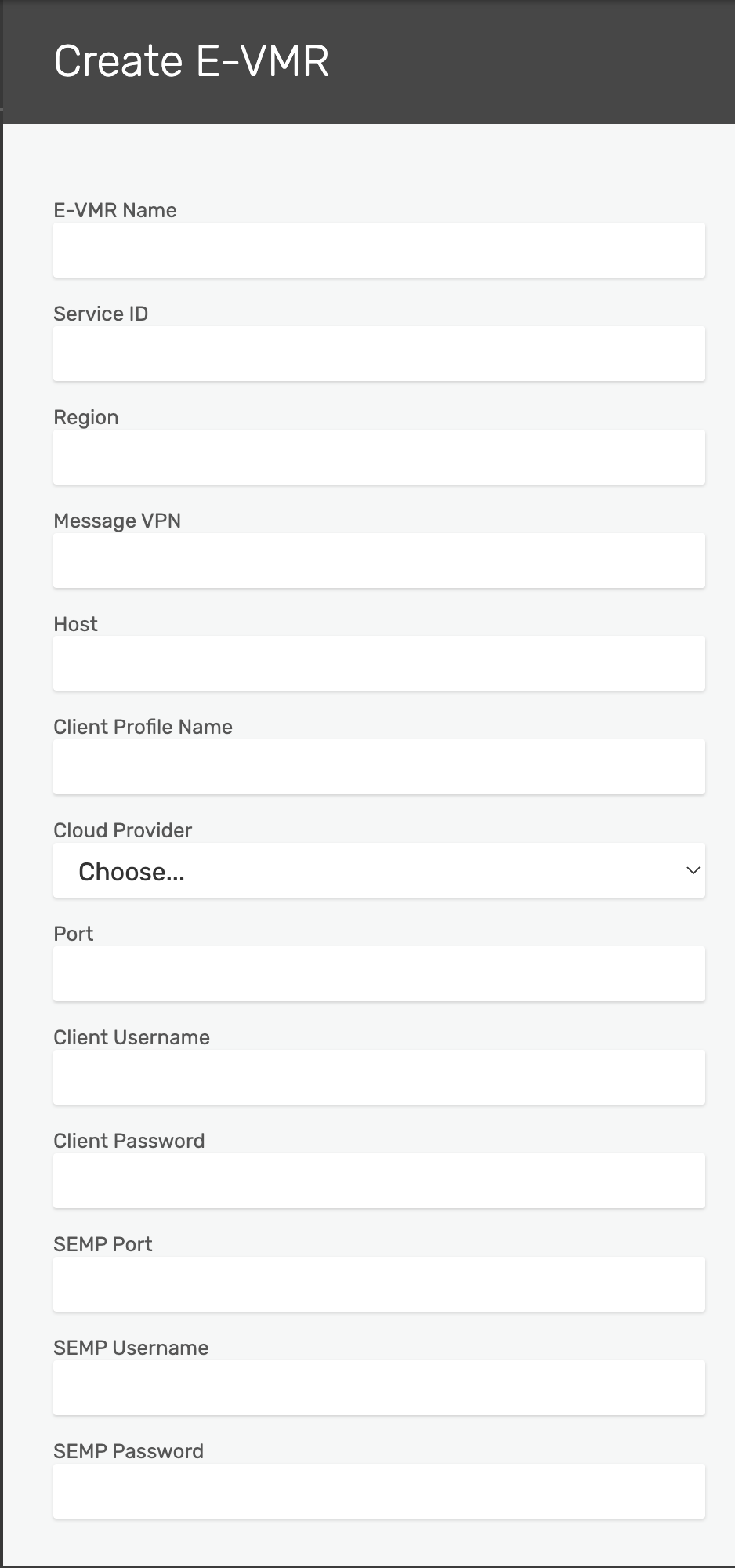
-
Click Submit. The EVMR appears in the E-VMRs list.
The E-VMRs list belongs to the whole installation, not to one organization. The Event Management Agents tab next to it lists the agents that have connected.
2. Deploy the Event Management Agent
Deploy a self-managed agent in the datacenter, next to the event broker services it manages, following the Event Management Agent instructions. Point it at the EVMR from step 1.
In an air-gapped installation, mirror the agent's image into your registry first, as in Mirror the Images.
See Setting Up a Connected Event Management Agent and Event Management Agent Security.
3. Add the Event Broker Service in Runtime Manager
In Event Portal's Runtime Manager, create an event mesh and add your event broker service to it as a messaging service. Check that it shows as connected to the agent before you continue.
See Modeled Event Meshes, Building a Modeled Event Mesh and Connecting External Event Brokers to Event Portal.
4. Push the Configuration
Associate your application with the messaging service and push its configuration. Event Portal sends the request through the EVMR, and the agent creates the objects the application needs on the event broker service, such as queues and their subscriptions. Run a scan afterwards to compare what is on the event broker service with your design.
See Setting Event Portal Runtime Configuration Options, Configuring Event Brokers in Event Portal, and Reviewing Promotions to Event Brokers. For scans, see Discovering Runtime Data and Auditing and Importing Runtime Data.